

Screenshots show the Polish interface. Polish labels are included beside their English translations.
The vehicle is ready for collection. You still need to let the customer know and remind them when you close today. You can ask Pilot to do this in chat: specify the recipient and information, then check the prepared message and confirm sending.
You do not need to open a separate SMS form first. Pilot prepares the message, but the decision to send stays with you. After sending, you can find it in the communication history.
Before you start
Have the customer's first and last name as stored in PilotGo ready, and check their phone number in Customers (Klienci). The instructions below show how to send to an existing contact identified by name.
In Communication (Komunikacja), you may see a prompt to enable receiving text messages. It concerns incoming messages. In the verified scenario, sending through Pilot worked without starting that process or changing telephony settings.
1. Open Pilot
Click the chat button in the bottom right of the application. The conversation panel will open. Start a new conversation with the plus icon at the top of the panel, labelled New chat (Nowy czat).
Use the “Type or talk to Pilot…” (“Pisz lub rozmawiaj z Pilotem…”) field to enter your request. You do not need to open an appointment or change the vehicle's status to prepare this message.
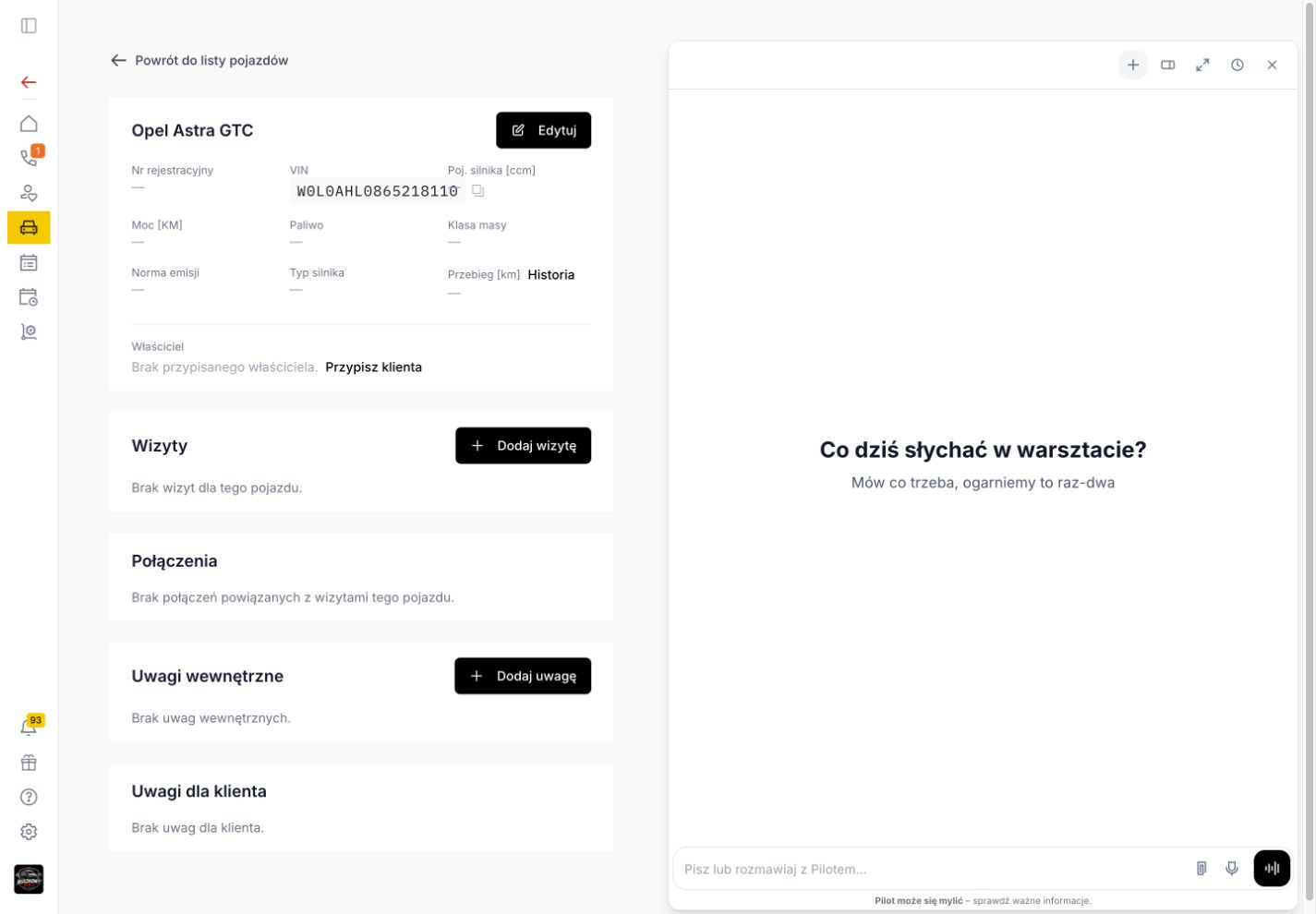
Open the chat with Pilot and start a new conversation.
2. Identify the customer and explain what you want to say
Give the contact's name and specific information for the customer. For example:
Prepare a text message to Anna Nowak saying that the vehicle is ready for collection and we are open until 17:00 today. Show the recipient and message for confirmation.
Anna Nowak is an example name. Replace it with the correct customer's details as stored in your workshop. Adjust the time to your actual opening hours too. Send the request with the arrow next to the message field and wait for a reply.
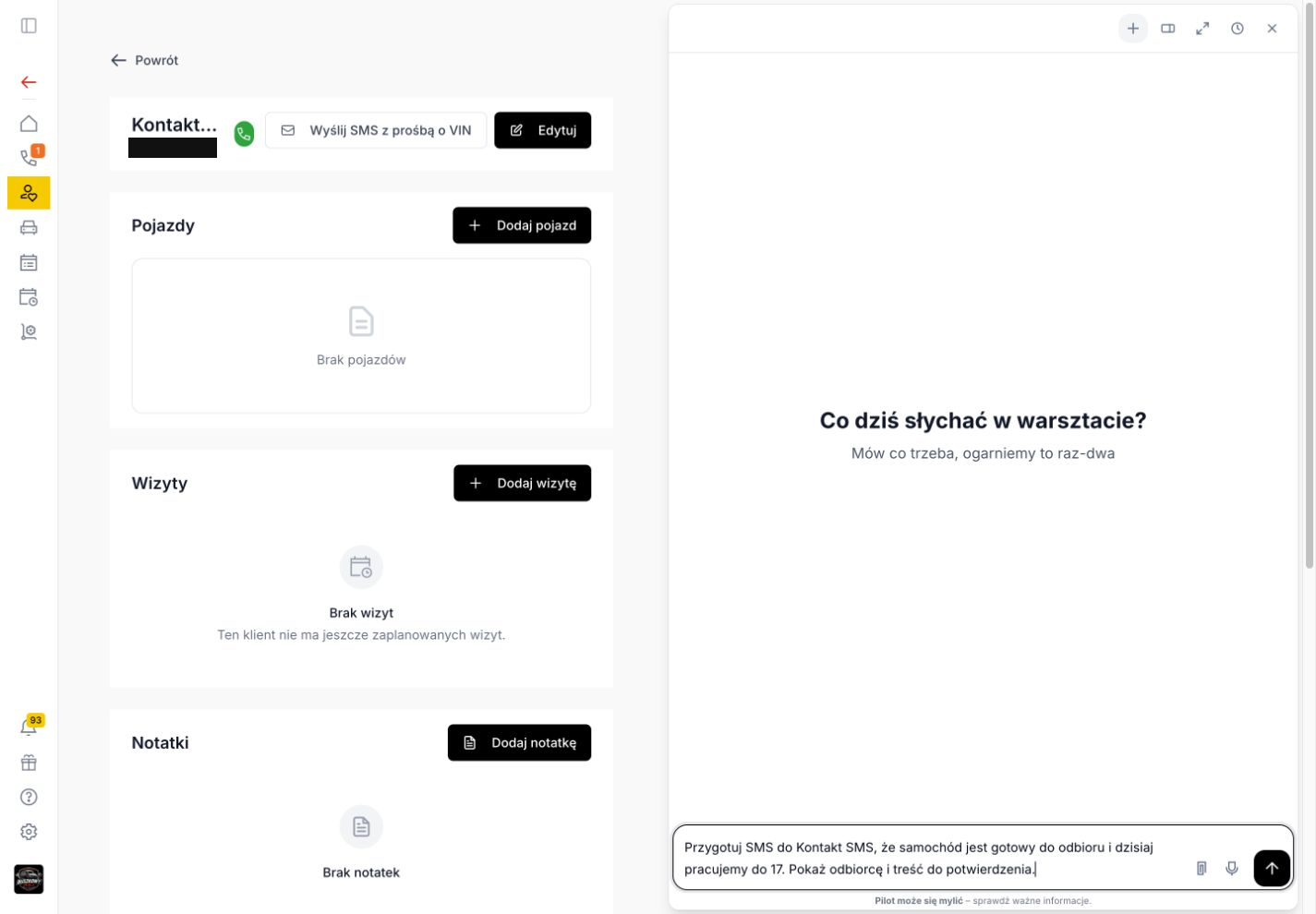
Give the recipient and information in one request.
3. Check the recipient and the complete message
Pilot will show a “Send a text message to the customer?” (“Wysłać SMS do klienta?”) card. In To (Do), check the contact name and phone number. In Message (Treść), read the entire text, including the collection time and any workshop signature and contact number.
In the example shown, Pilot added the workshop name and phone number. Check the finished message rather than assuming it will exactly match your request.
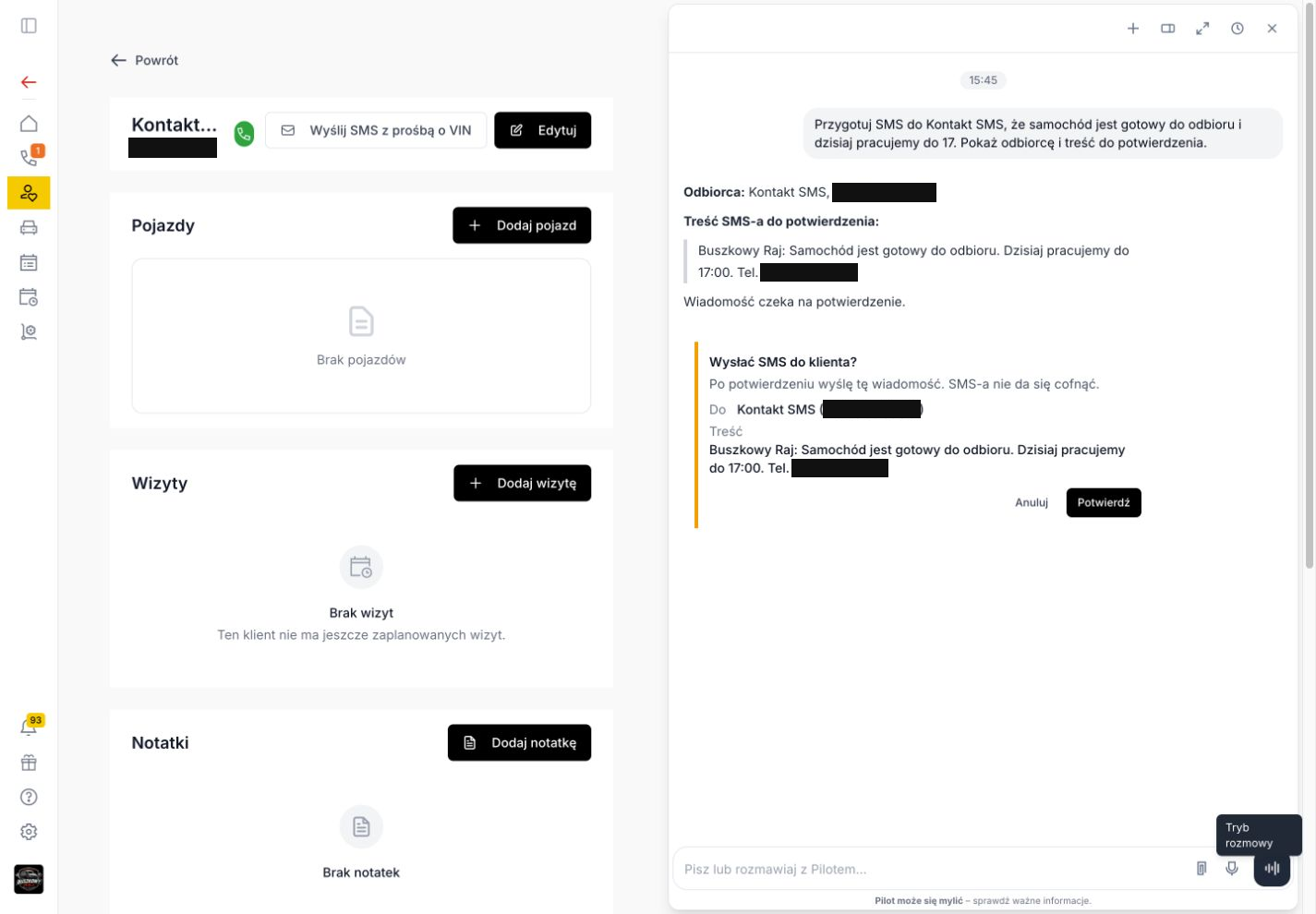
Before sending, check the “To” and “Message” fields.
4. Confirm sending
If the recipient and message are correct, click Confirm (Potwierdź). The card warns that a text message cannot be recalled. If anything is wrong, choose Cancel (Anuluj).
5. Find the message in the history
Open Communication (Komunikacja), select the Messages (Wiadomości) filter and enter the customer's number in the search box. You will see the recipient, a message excerpt and its status. Click the message text to open its details.
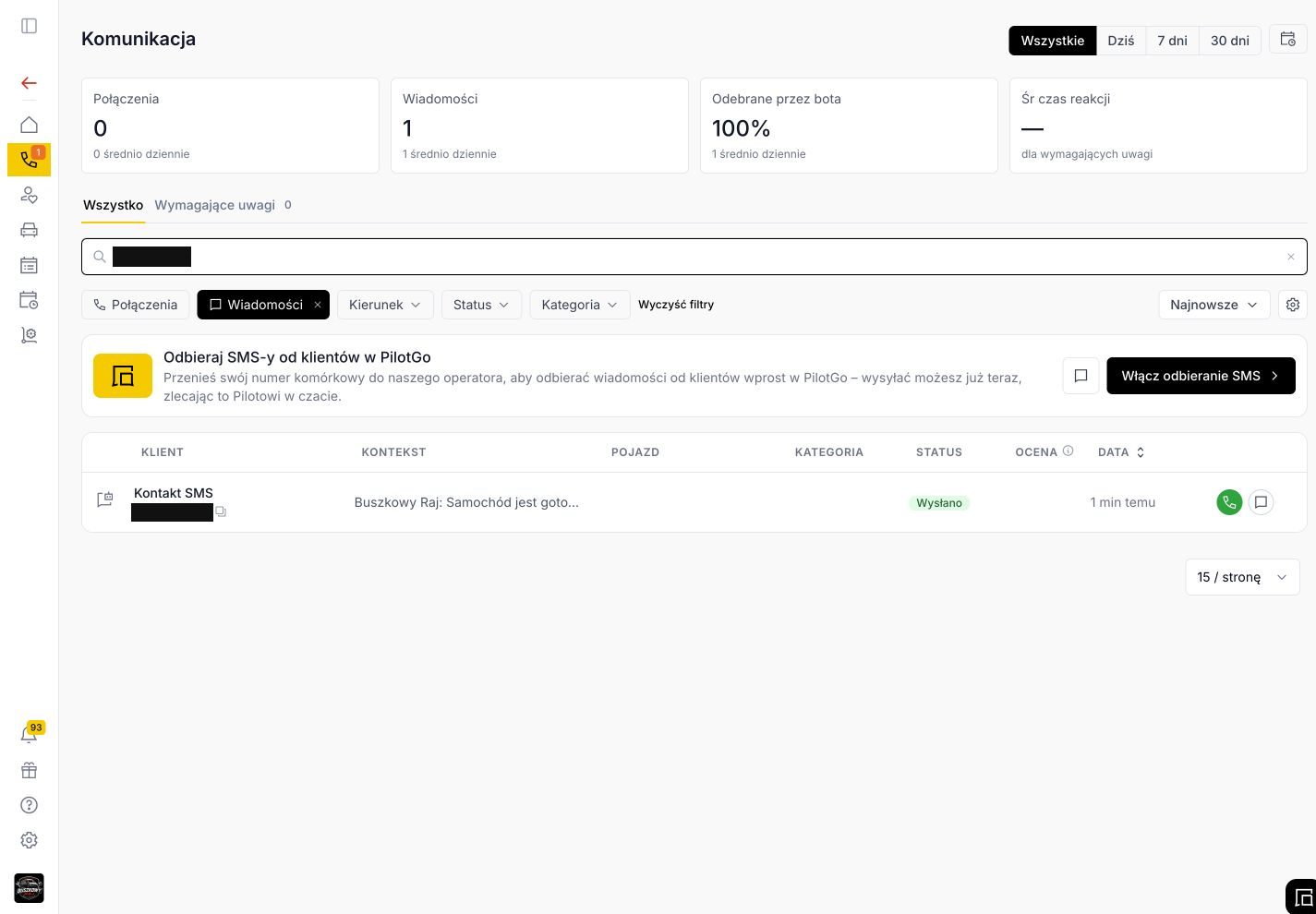
The sent text message remains in the history after the page is refreshed.
Sent (Wysłano) does not yet mean Delivered (Dostarczono). Read the status shown for that particular message. If Pilot's reply is delayed, check the history before repeating your request.
If it does not work
In the verified case, Pilot did not recognise an existing contact identified by phone number alone. It prepared the message after the contact's name was completed and supplied in a new conversation. If searching the history by name returns no results, try the phone number.
Vehicle ready for collection? Open Pilot and prepare a message for the customer.