

Screenshots show the Polish interface. Polish labels are included beside their English translations.
Parts and labour are already in the appointment estimate. Now turn it into a document for the customer: check the prices, apply any discount and open the PDF preview. No need to copy the same line items into a separate file.
A customer asks how much the repair will cost, and you have already calculated everything in PilotGo. Before sharing the estimate, check the amounts and the information that will appear in the document. Here is where to prepare the customer-facing version of an existing estimate.
1. Open the appointment and check the prices
In Appointments (Wizyty), open the correct vehicle and go to Proposed estimate (Proponowana wycena). Start by checking the work and parts. Note which items are included in the total. A suggested part appearing in the list does not necessarily mean its price is included in the sum.
For a part, you can use Edit net price (Edytuj cenę netto) or Edit gross price (Edytuj cenę brutto). Distinguish the workshop's cost from the customer's price. For a service, check Labour hours (Godziny robocizny). Labour cost is calculated from the time and the workshop's rate. Finally, compare the totals: parts and materials, services, net amount, VAT and final amount.
2. Apply a discount
Below the line items, you will find + percentage discount (+ rabat %) and + fixed discount (+ rabat kwotowy). These are two ways of specifying a customer discount: a percentage or a fixed amount.
After setting the discount, check the final estimate amount. This is the amount the customer should see in the document.
3. Choose which information the customer sees
Go to Settings → Estimates → What the customer sees on the estimate (Ustawienia → Wyceny → Co widzi klient na wycenie). The switches let you choose whether to display the OE number, the part manufacturer's reference and the part brand. Separately, choose whether to break prices down into net / VAT / gross, or display gross amounts only.
These are workshop-wide settings, so consider how you prepare other estimates too. Do not treat them as an edit to one line item in a particular appointment.
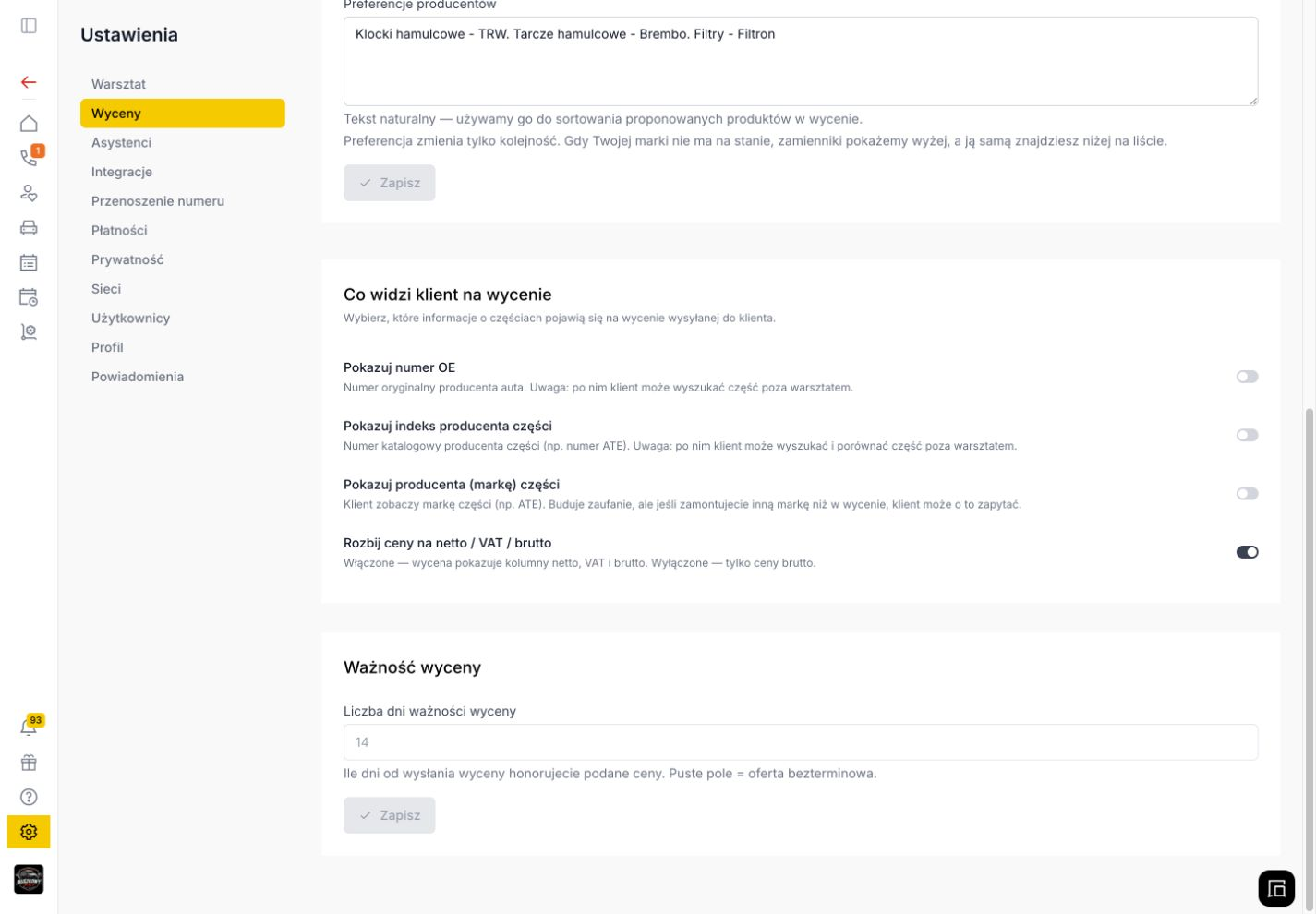
Choose which part details and price breakdown appear on the customer estimate.
4. Open the preview and download the PDF
Return to the appointment card and click Generate estimate (Generuj wycenę) in the top right, next to Print appointment (Drukuj wizytę).
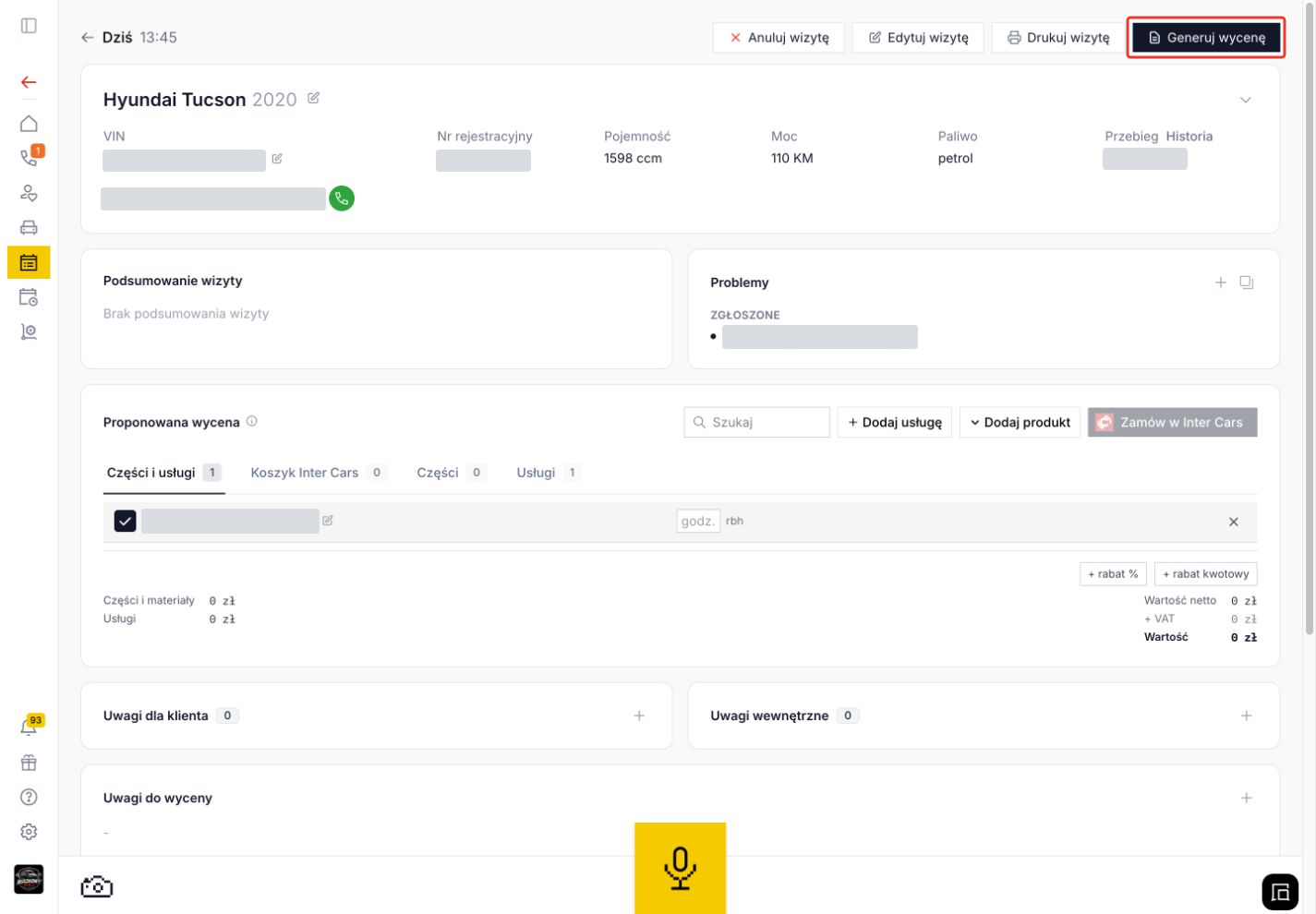
In the appointment card, choose “Generate estimate” to open the customer view.
The Estimate preview (Podgląd wyceny) will open. Check the customer and vehicle details, the work list and the price summary.
The workshop logo and details come from Settings → Workshop → Workshop details (Ustawienia → Warsztat → Dane warsztatu). You will also find Change logo (Zmień logo) there. It is worth completing these details before preparing customer documents.
To download the document, click Download PDF (Pobierz PDF) in the top right of the preview. In the screenshot below, this is the dark button with a download icon next to Print (Drukuj).
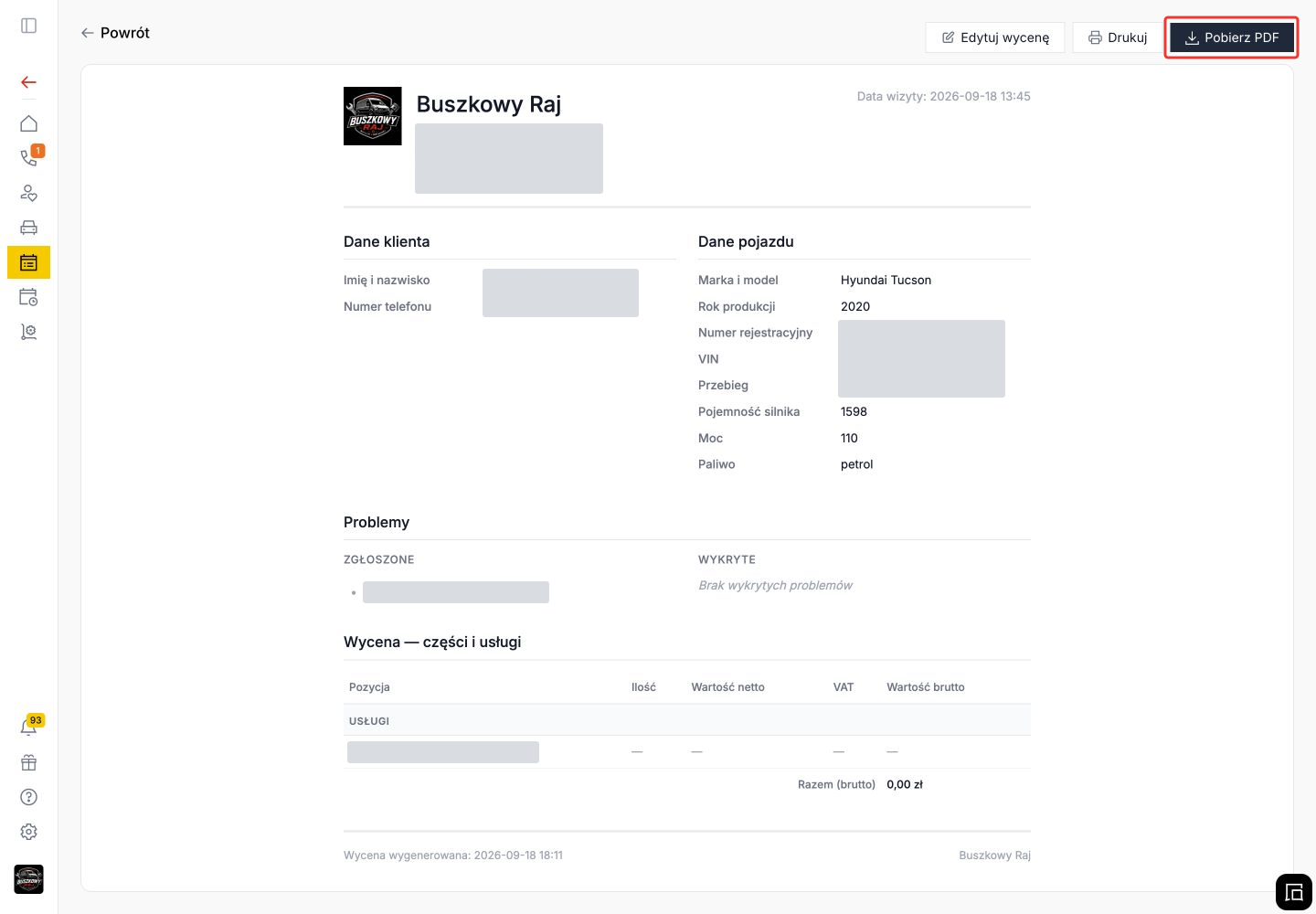
In the estimate preview, click “Download PDF” to download the customer document.
Already calculated the repair? Open the appointment and prepare the customer estimate.