

Screenshots show the Polish interface. Polish labels are included beside their English translations.
The phone rings, messages arrive, and between vehicle check-ins it is easy to lose track of what still needs a response. In Communication (Komunikacja), calls and text messages are together in one place. You can narrow the list, open contact details and access the available actions.
Start with Needs attention (Wymagające uwagi), but always check the date range and active filters. The counter describes the selected list. Do not treat it as the number of all customers waiting for a reply.
Before you start
Sign in to the correct workshop. SMS reply availability depends on the communication configuration. If the application shows Enable receiving SMS (Włącz odbieranie SMS), read the information about porting your number. Having a history of sent messages does not mean this workshop can already receive text messages or reply from the panel.
1. Open Communication
Choose Communication (Komunikacja) in the left-hand menu. If you only see icons, expand the menu with the button at the top. Above the list is a summary of calls and messages, followed by All (Wszystko) and Needs attention (Wymagające uwagi).
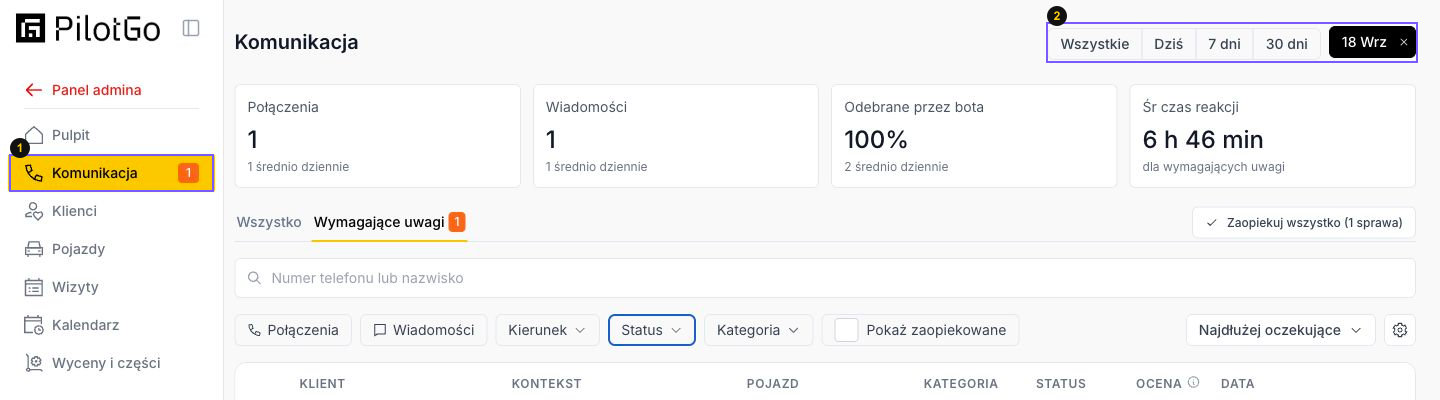
1. Open Communication. 2. Check the date range in the top right.
2. Choose a list and check the filters
Click Needs attention (Wymagające uwagi). Under the search box, choose a channel: Calls (Połączenia) or Messages (Wiadomości). Direction (Kierunek), Status and Category (Kategoria) filters are also available. The active channel filter has a highlighted background; clicking it again removes that restriction.
At the top, choose All (Wszystkie), Today (Dziś), 7 days (7 dni) or 30 days (30 dni), or use the calendar button for a custom range. Select the start and end dates in the calendar. For a single day, click the same date twice. Once applied, the range label appears beside the date buttons.

2. Narrow the list to the channel you need. 6. Note the “Show handled” switch.
Needs attention (Wymagające uwagi) and Unread (Nieodczytane) are different interface options. The second is in the Status filter. Do not assume both lists contain the same entries. If the results are empty, also check the number or surname search and the date range.
3. Open the details of a particular contact
Click the text in the Context (Kontekst) column. A panel opens on the right. For a call, it includes the status, direction, duration, Summary (Podsumowanie) and Conversation history (Historia rozmowy). You do not need to play the recording to read the saved text.
For a text message, the panel shows the conversation, message content and time. A list entry may be a call or a message. Do not assume one row contains every agreement made with that customer.
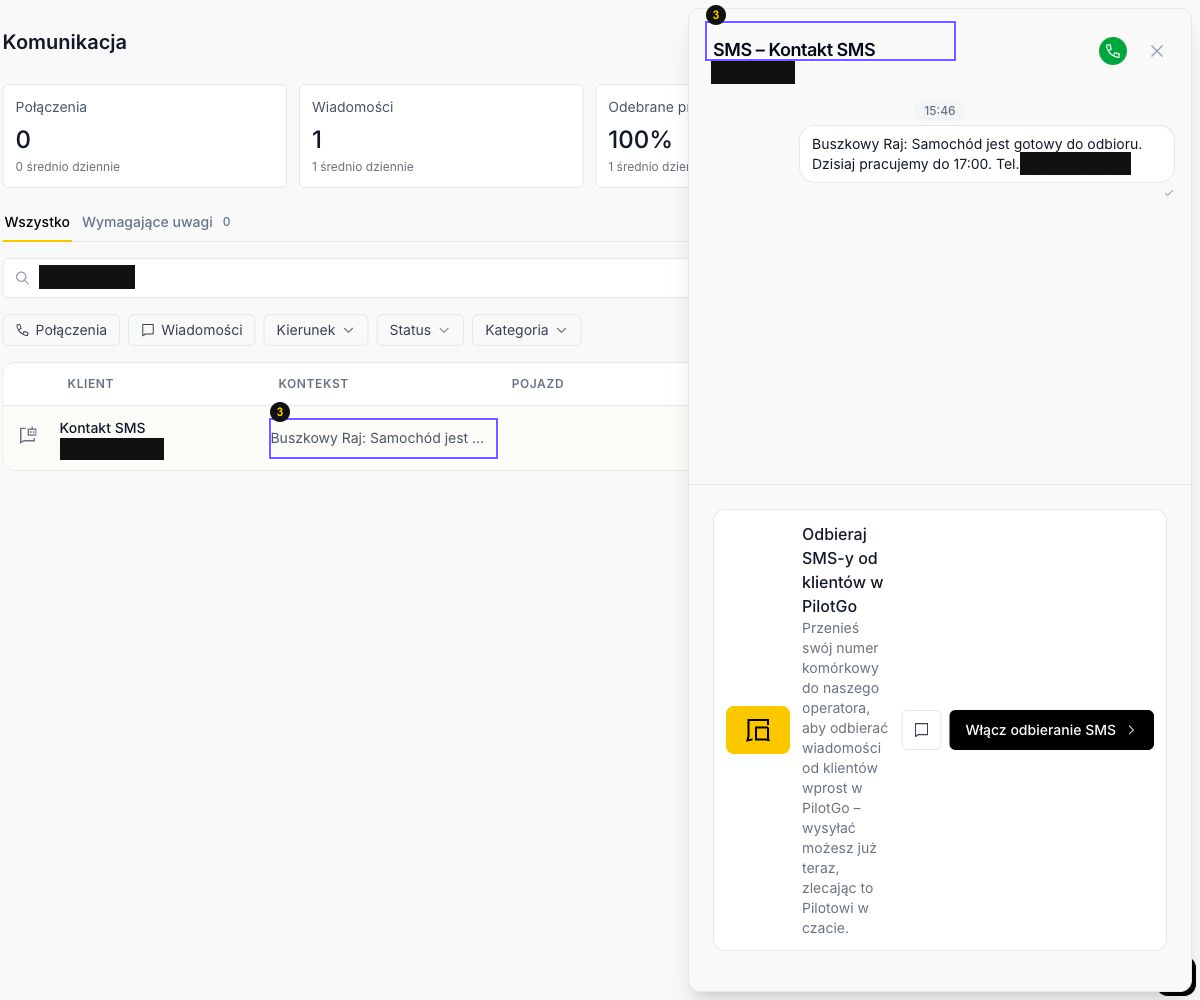
3. Click the context to read the details. The illustration shows the history of a previously sent text message.
4. Check whether you can reply by text message
Beside the row is a Reply (Odpowiedz) button with a speech-bubble icon. In the verified view, it opens the same SMS history side panel.
If, instead of a reply field, you see Receive customer text messages in PilotGo (Odbieraj SMS-y od klientów w PilotGo) and Enable receiving SMS (Włącz odbieranie SMS), a direct reply from this panel is not yet available here. The notice states that porting the number is required to receive messages. The separate option to send through Pilot is a different workflow.

4. This notice means you need to check the SMS receiving configuration. It is not a reply form.
5. Mark an entry as handled
In Needs attention (Wymagające uwagi), open the three-dot Actions (Akcje) menu beside the relevant row. It includes Handled (Zaopiekowane). Select it after completing the necessary actions for that contact.
The menu also has a separate Does not need attention (Nie wymaga uwagi) option. Do not confuse it with confirmation that a reply was sent. Marking an entry does not replace contacting the customer.
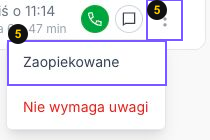
5. Open the three dots beside the correct entry and choose “Handled”.
6. Check the remaining queue
After marking the entry, return to the list and check its state with the same filters and dates. Show handled (Pokaż zaopiekowane) lets you include the marked entries. You can also return to All (Wszystko) and search for the phone number.
Handle all (Zaopiekuj wszystko) shows the number of items. Do not use it to empty the queue before reviewing individual contacts. First make sure the necessary replies and agreed actions have been completed.