


Screenshots show the Polish interface. Polish labels are included beside their English translations.
A customer has sent a photo of their vehicle registration document. To complete the vehicle details, you usually have to zoom in, find field E and copy 17 characters. Now you can give the photo to Pilot and ask it to save the VIN to the correct vehicle record.
Pilot reads the number from the document and prepares a change for approval. You do not need to copy the recognised VIN into a message or enter it again in the vehicle form. Check the result, confirm saving and return to work.
1. Identify the vehicle and attach the photo
In Vehicles (Pojazdy), open the vehicle whose details you want to complete. Copy the record's address from your browser's address bar. Then open the chat with Pilot using the button in the bottom right and choose New chat (Nowy czat).
Click Attach file (Dołącz plik) beside the message field and select the registration document photo. Paste the vehicle record link into your message. This identifies the exact record, which is particularly useful when several vehicles of the same make and model are in the workshop.
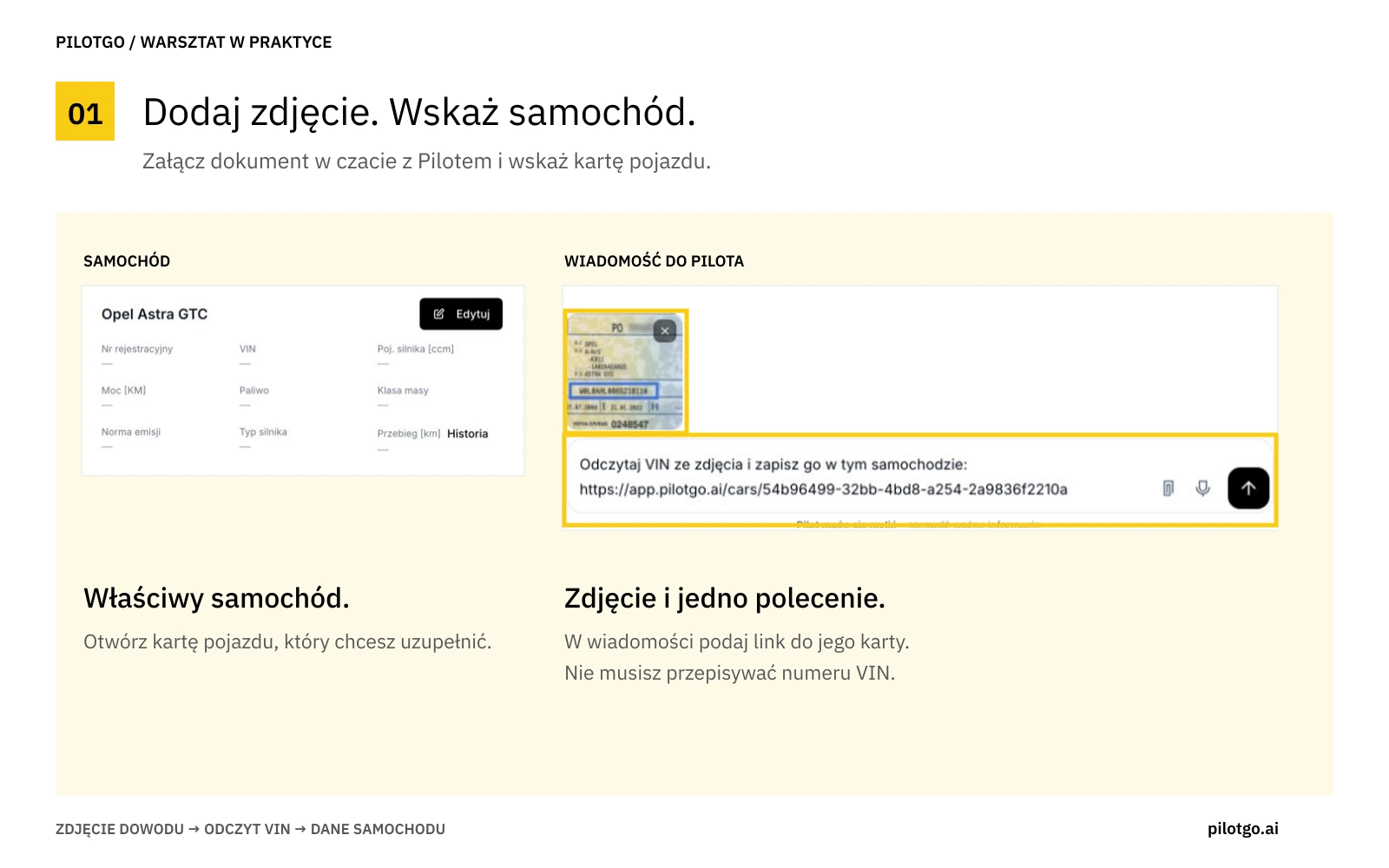
Attach the photo and identify the vehicle whose VIN you want to add.
2. Ask Pilot to read the VIN and confirm saving
Write:
Read the VIN from the photo and save it to this vehicle: [link to the vehicle record].
Send the message and wait for a reply. Pilot will show the recognised number. If it asks what to do with it, choose Enter it for this vehicle (Wpisz do tego auta). A “Correct the vehicle details?” (“Poprawić dane pojazdu?”) card will then appear. Compare the VIN with the document and make sure the correct vehicle is selected. If everything is correct, click Confirm (Potwierdź).
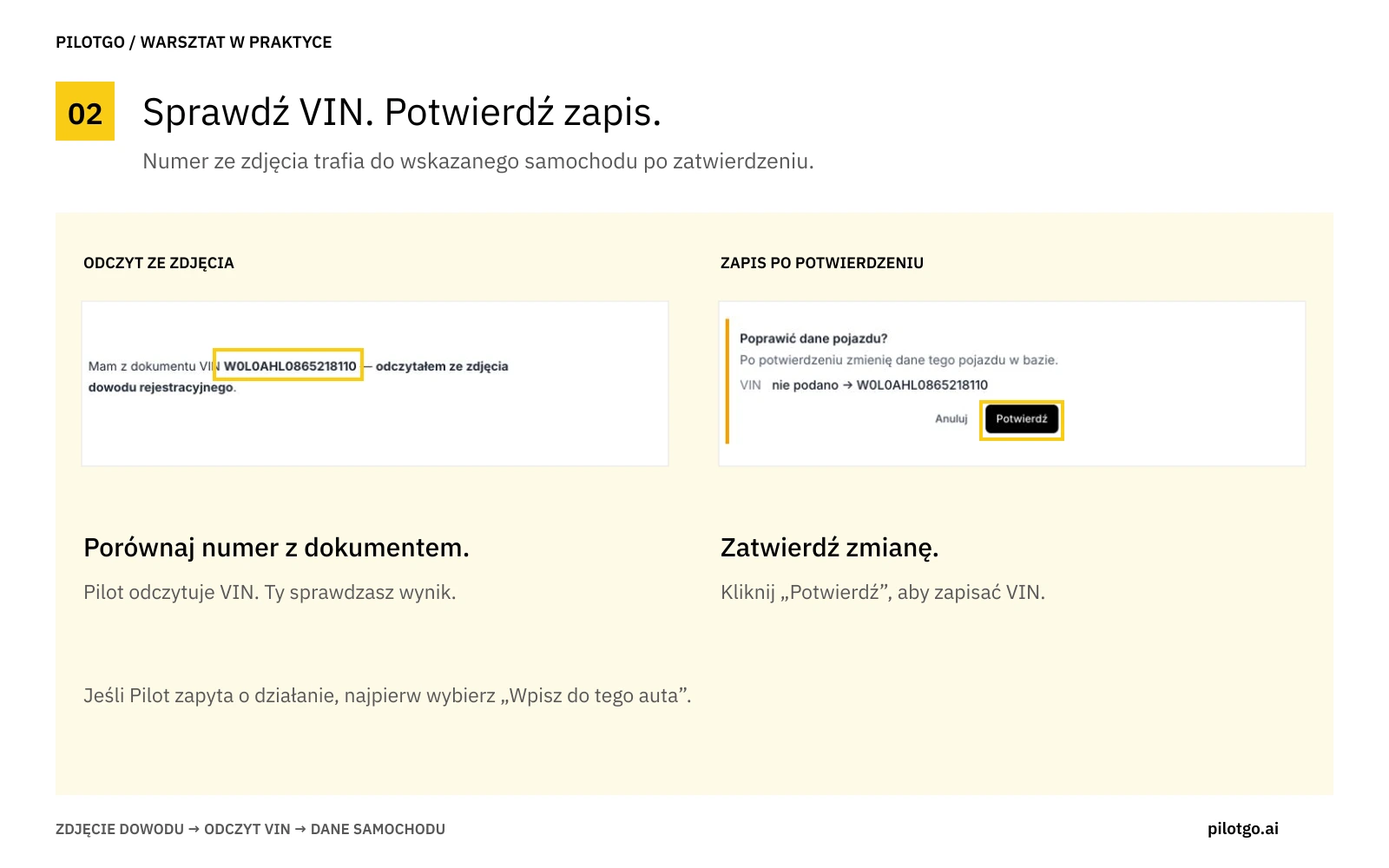
Check the recognised VIN and approve the change with “Confirm”.
3. Check the VIN in the vehicle record
After confirming, return to the vehicle record. The VIN field should show the number read from the photo. Refresh the record and check that it is still saved. This completes the vehicle details without manually moving the number from chat to the form.
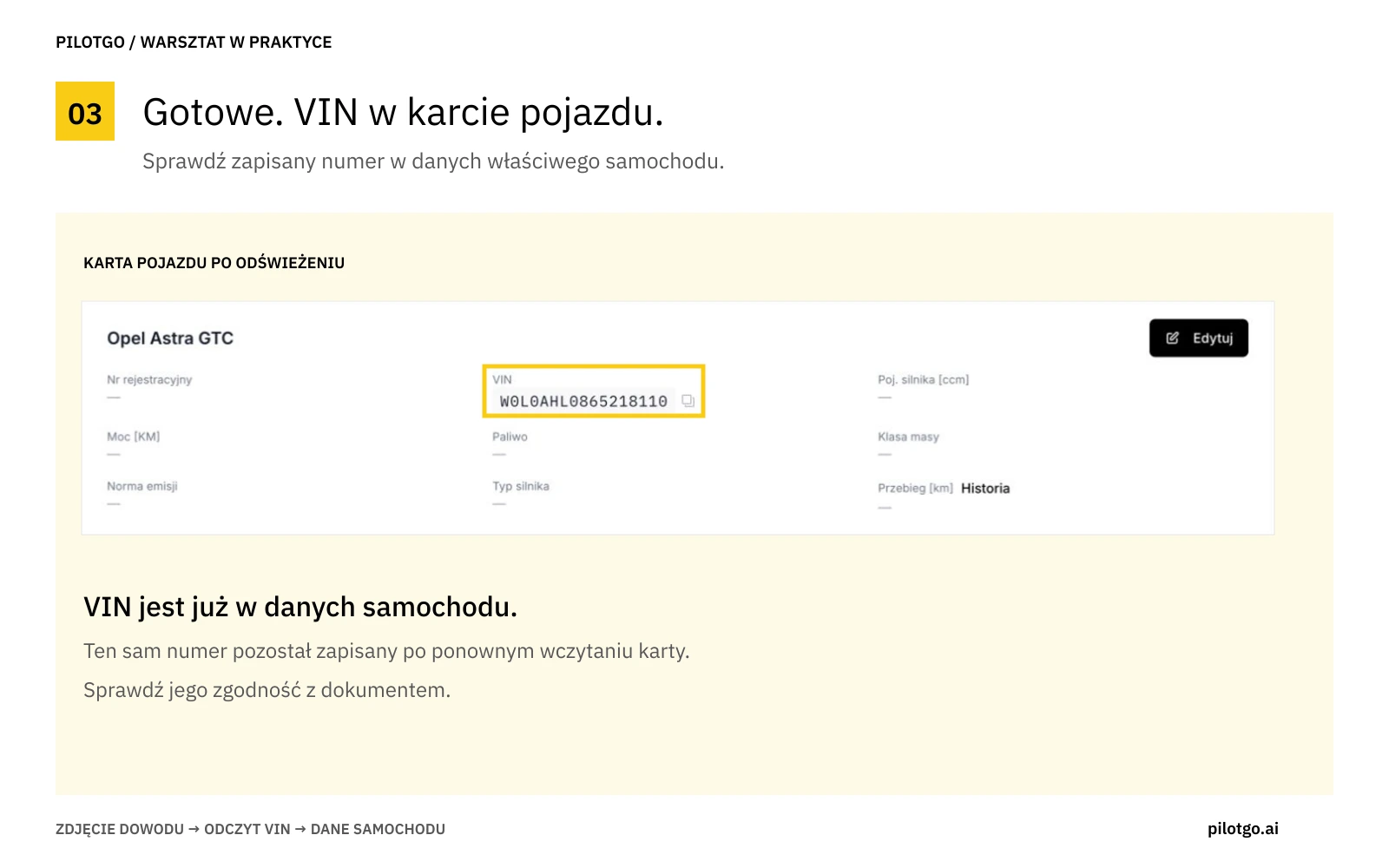
The VIN remains in the vehicle details after the record is refreshed.
The photo should be sharp, with the entire VIN field visible and no glare. Always compare the saved number with the document. If any character is unreadable, ask the customer for a clearer photo.
Have a registration document photo from a customer? Open PilotGo and complete the VIN in their vehicle record.